Objectives: Connect the router so that it’s functioning then perform a factory reset. Proceed to access the router by entering its IP in to your browser and login as administrator to find additional security settings and different router information/settings that can be modified.
Equipment list: Belkin N150 router, router power cord, and Ethernet cable.
Notes and Observations: After connecting the power cable to the router and powering it on and factory resetting the router I was able to enter the router’s IP into my browser to access information/settings for the network. One setting I learned about is configuring the router’s ports which have options to use 100M, 10M, or 1G full duplex/half duplex which allows information to be sent faster/simultaneously.
Diagrams, flowcharts, and figures:
References: Belkin. (n.d.). PDF.
Click to access manual-1456.pdf
Questions:
What is the purpose of a router on computer networks?
The purpose of a router is to provide a computer with internet connection and allow a computer to send and receive packets.
The basic purpose of a router is to _______________ one network to another one.
Connect
What is the name of the OSI model layer in which routers are located?
Layer 3 – Network layer
The router is located in the _____________ (name) layer of the OSI model.
Network .
What type of protocol data unit (PDU) data/datagram is sent by routers in this layer?
Packets.
The PDU used by a router in its OSI layer is called _____________ (type of data).
TCP.
What is the IP address your router uses for logging in and administrative management?
192.168.2.1
Can you find where you can manually assign IP addresses to your router?
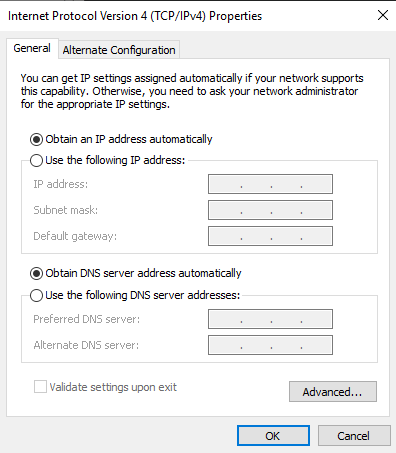
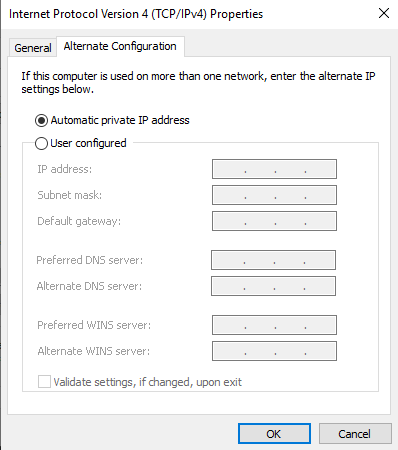
You can manually assign IP addresses in the TCP properties (figure 1 & 2).
Can you find where you can assign the router’s SSID (router name)?
Enter your router’s IP into a browser and then login as administrator, navigate to settings and there is an option for “changing wifi name/SSID name”.
Do you have options on what radio frequencies the router is working on? What are they?
I have two radio frequencies; 2.4GHz and 5GHz.
Do you have options on security settings? What are those? What is the best option to choose?
There are many security options such as: Enabling a Wi-Fi password for your network, changing SSID, changing bandwidth speeds, WPA version, and changing Wi-Fi password. The best option is adding a password to your network.
Can you see where you can view the devices that are connected to your router?
Yes, under the “Home Network Devices” you can see each device connected to the network, whether the device is using Ethernet or Wi-Fi, and the radio frequency being used.
Can you restart the router without physically touching it?
Yes, there is a tab named “restart device” which will restart your router without needing to touch it.
What are the features of your router do you guess you would use most often?
The features I would use the most would be restarting the router or changing the password.
Conclusions: From this lab I learned a lot of different things such as being able to access a router from your browser. From there I learned about lots more things such as full duplex/half duplex, resetting a router without having to touch it, see devices connected, and how to setup additional security settings.
 Nathan's Hardware/Networking Site